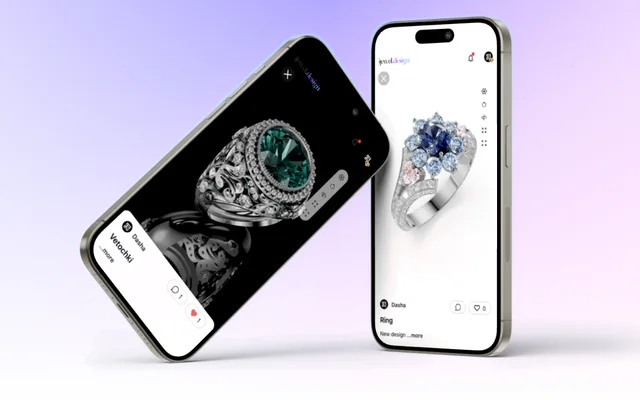
Try it on, before it exists
- Any ring from your CAD file
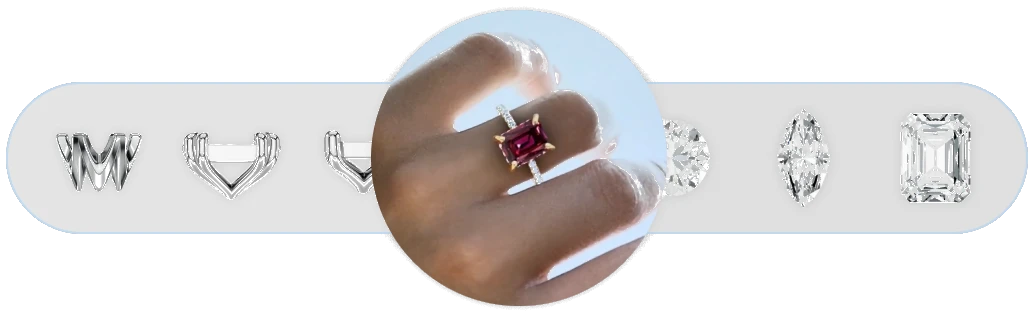
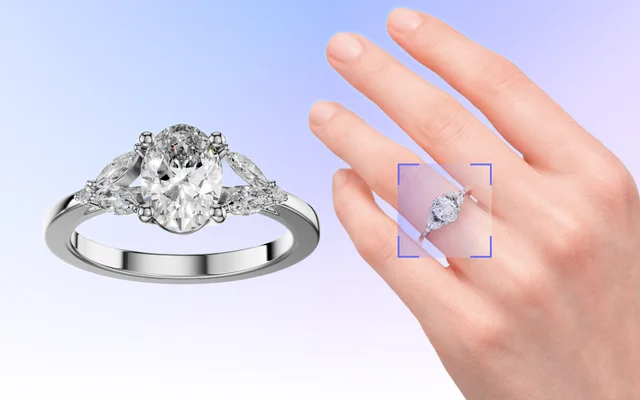
- On the customer's own hand
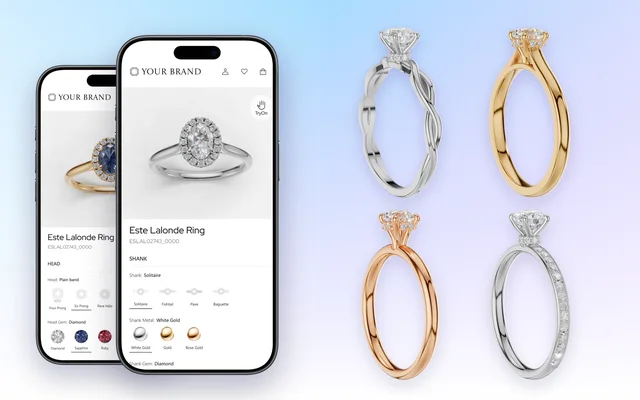
- In the phone browser, no app
In three steps
Upload the ring
Any CAD file. Auto Fit puts it on the finger, once per model, in Playground.
Turn Try On on
The Try On button appears in the viewer, on your site or in the share link.
The customer taps it
The phone camera opens and the ring sits on their hand. No app.
See it on your hand
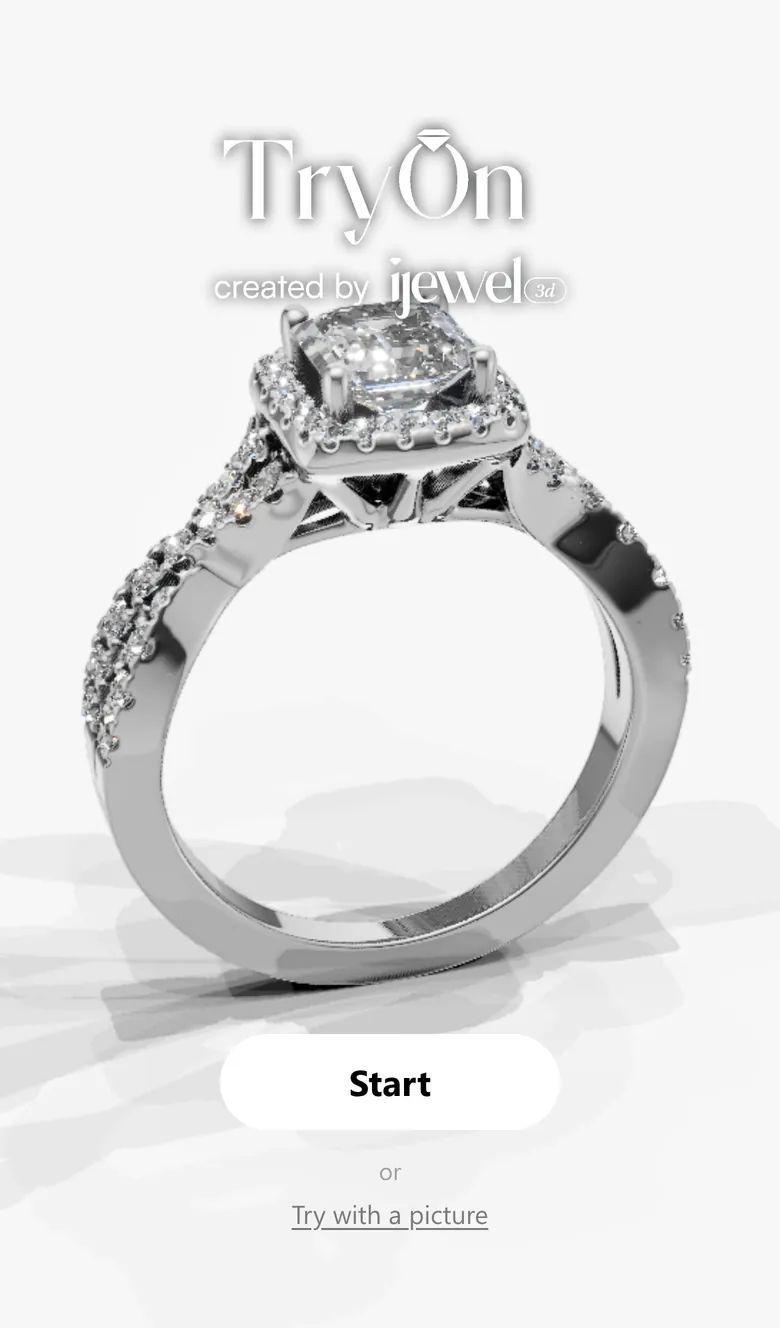 Open Try On (opens in a new tab)
- Phone or webcam
- The ring follows your finger
What you can do
Any ring from your file
The same file you use in the viewer. No extra model.
On their own hand
Phone or webcam. The ring follows the finger as the hand moves.
On a photo too
Place the ring on a photo of a hand and save the image.
No app
It runs in the phone browser, on iOS and Android.
Real light
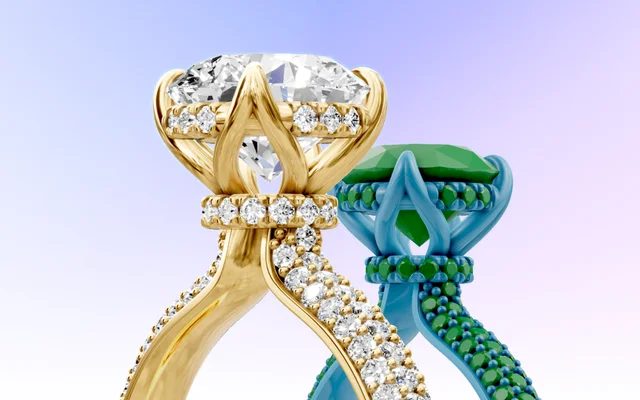
The same rendering as the viewer, with reflections and shadows on the hand.
In store
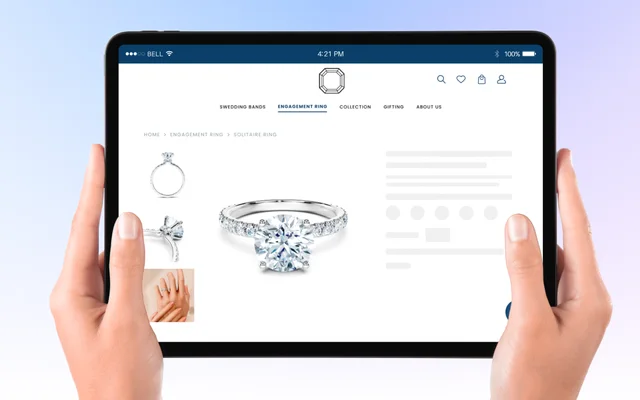
Works on a tablet at the counter too.
One line to embed
Iframe, Shopify, WooCommerce, or the viewer SDK.
Every plan
Try On is in every plan. White label on your domain is an add-on.
FAQ
Does the customer need an app?
No. Try On runs in the web browser. A tap or a click opens the camera.
Which pieces work?
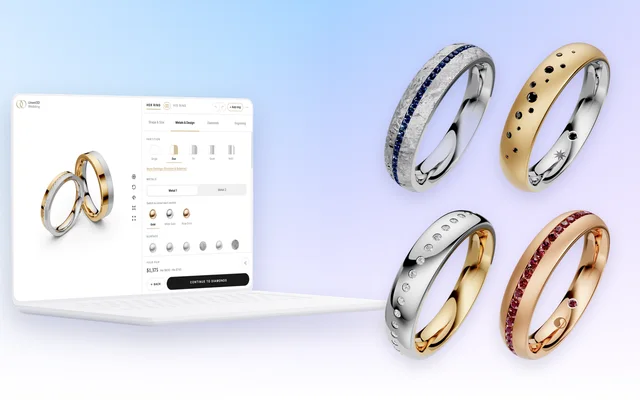
Rings: a ring model, a Ring Configurator or a Wedding Band Builder project.
How do I set it up?
Open the ring in Playground, turn on Enable AR in the Try-On settings, then select Enter Setup and Auto Fit. Check the fit and save the project. You do this once for each project.
Is it in my plan?
Yes, in every plan, with the iJewel mark. From Professional, Whitelabel Try-On is an add-on that removes the mark on your own domain.
Didn’t find the answer? Read more in the docs (opens in a new tab)